
Using the image viewer
When a compatible portable storage device is plugged into the USB jack located in the center console, compatible image files stored on the device can be viewed on the control panel device.
Connecting the portable storage device
To connect a portable storage device to the system so that images stored on it can be viewed, insert the device into the USB jack located in the center console.
Viewing images
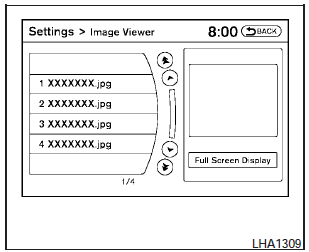
To view an image, press the SETTING button and then select the Image Viewer key with the NISSAN controller. The Image Viewer screen will be displayed.
A list of compatible images on the storage device is displayed on the left side of the screen, while the selected image is displayed on the right side of the screen. To choose a different picture from the list, use the NISSAN controller to scroll through the list once the desired image is highlighted.
Select the Full Screen Display key and press the ENTER button to view a full screen version of the image.
Image requirements:
- Image type: JPEG.
- File extensions: *.jpg, *.jpeg.
- Maximum resolution: 2048 x 1536.
- Maximum size: 2 MB.
- Colors: 32,768 (15-bit).
- Maximum file name length: 253 bytes (display.
only shows first 8 characters).
- Maximum folders: 500.
- Maximum images per folder: 1024.
Viewing images in a slideshow
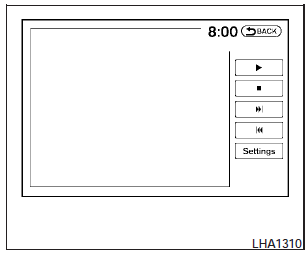
To view all of the images on the device in a slideshow, first enter the full screen mode while viewing one of the images. The slideshow control buttons are located on the right side of the screen.
Select the play key  to begin
the slideshow.
to begin
the slideshow.
The images shown on the screen will periodically
change at a given interval of time. To skip through
the images without waiting for them to change
automatically, select the  key
to skip backward
or the
key
to skip backward
or the  key to skip forward.
Select the
stop key
key to skip forward.
Select the
stop key  to end the slideshow
and return
to the full screen display of the image currently on
the screen.
to end the slideshow
and return
to the full screen display of the image currently on
the screen.
Slideshow settings
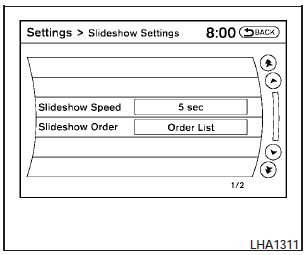
While in slideshow mode, select the Settings key. The Slideshow Settings screen will be displayed.
The following settings can be accessed:
Slideshow speed:
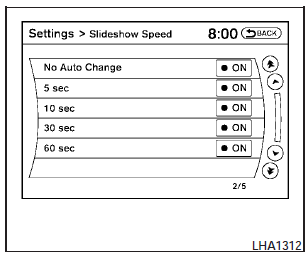
To change the interval of time at which images are changed during a slideshow, select the desired interval key. The indicator light to the right of the interval will come on to show that it is selected.
If the option No Auto Change is chosen, the slideshow will not change images automatically.
The slideshow can then only be operated using the manual controls.
To return to the slideshow screen, select the Back key or press the BACK button on the control panel.
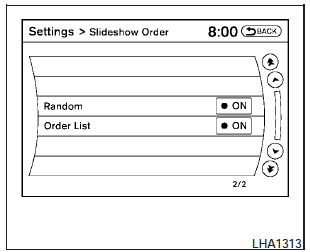
Slideshow order:
To change the order in which images are displayed during a slideshow, select one of the options.
If the Random key is selected, images will be displayed in a random order during a slideshow. If the Order List key is selected, images will be displayed in the order in which they are stored on the storage device.
To return to the slideshow screen, select the Back key or press the BACK button on the control panel.
See also:
Pre-towing tips
● Be certain your vehicle maintains a level
position when a loaded and/or unloaded
trailer is hitched. Do not drive the vehicle if it
has an abnormal nose-up or nose-down
condition; chec ...
NISSAN dealer.
However, now and then you may notice
light spark knock for a short time while
accelerating or driving up hills. This is not a
cause for concern, because you get the
greatest fuel benefit when ther ...
Starting the engine
1. Apply the parking brake.
2. CVT model:
Move the shift selector to P (Park) or N
(Neutral). P (Park) is recommended.
The shift selector cannot be moved out
of P (Park) and into any of the oth ...