
Call
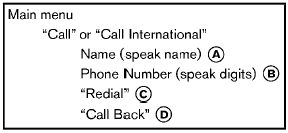
Name (speak name) A
If there are entries stored in the phonebook, a number associated with a name and location can be dialed.
See “Phonebook (phones without automatic phonebook download function)” later in this section to learn how to store entries.
When prompted by the system, say the name of the phonebook entry to call. The system acknowledges the name.
If there are multiple locations associated with the name, the system asks the user to choose the location.
Once the name and location are confirmed, the system begins the call.
Phone Number (speak digits) B
When prompted by the system, say the number to call. Refer to “Making a call by entering a phone number” earlier in this section for more details.
“Redial” C
Use the Redial command to call the last number that was dialed.
The system acknowledges the command, repeats the number and begins dialing.
If a redial number does not exist, the system announces, “There is no number to redial” and ends the VR session.
“Call back” D
Use the Call Back command to dial the number of the last incoming call within the vehicle.
The system acknowledges the command, repeats the number and begins dialing.
If a call back number does not exist, the system announces, “There is no number to call back” and ends the VR session.
Special Dialing
To dial more than 10 digits or any special characters, please say “Special Dialing”. When the system acknowledges the command, the system will prompt you to speak the number.
During a call
During a call there are several command options
available. Push the  button on the
steering
wheel to mute the receiving voice and enter
commands.
button on the
steering
wheel to mute the receiving voice and enter
commands.
- “Help” — The system announces the available commands.
- “Go back/Correction” — The system announces “Go back,” ends the VR session and returns to the call.
- “Cancel/Quit” — The system announces “Cancel,” ends the VR session and returns to the call.
- “Send/Enter/Call/Dial” — Use the Send
command to enter numbers, “*” or “#”
during a call. For example, if you were
directed to dial an extension by an automated
system:
Say: “Send one two three four.”
The system acknowledges the command
and sends the tones associated with the
numbers. The system then ends the VR
session and returns to the call. Say “star” for
“*”, say “pound” for “#”.
- “Transfer call” — Use the Transfer Call command to transfer the call from the Bluetooth® Hands-Free Phone System to the cellular phone when privacy is desired.
The system announces, “Transfer call. Call transferred to privacy mode.” The system then ends the VR session.
To reconnect a call from the cellular phone
to the Bluetooth® Hands-Free Phone system,
push the
button.
- “Mute” — Use the Mute command to mute your voice so the other party cannot hear it.
Use the mute command again to unmute your voice.
NOTE:
If a call is ended or the cellular phone
network connection is lost while the Mute
feature is on, the Mute feature will be reset
to “off” for the next call so the other party
can hear your voice.
See also:
E–85 fuel
E-85 fuel is a mixture of approximately 85% fuel
ethanol and 15% unleaded gasoline. E-85 can
only be used in a Flexible Fuel Vehicle (FFV). Do
not use E-85 in your vehicle. U.S. government
reg ...
Bluetooth streaming audio (if so
equipped)
● Some Bluetooth audio devices may not be
recognized by the in-vehicle audio system.
● It is necessary to set up the wireless connection
between a compatible Bluetooth
audio device an ...
Unlocking doors
Unlocking doors
1. Press the button on the
Intelligent
Key.
2. The hazard warning lights flash once.
3. Press the button again within 60
seconds
to unlock all doors.
All doors will be ...