
How to use touch screen

- The glass screen on the liquid crystal display may break if it is hit with a hard or sharp object. If the glass breaks, do not touch the liquid crystalline material, which contains a small amount of mercury. In case of contact with skin, wash immediately with soap and water.
- To clean the display, use a soft, dry cloth. If additional cleaning is necessary, use a small amount of neutral detergent with a soft cloth.
Never use a rough cloth, alcohol, benzine, thinner or any kind of solvent or paper towel with a chemical cleaning agent. They willscratch or deteriorate the panel.
- Do not splash any liquid such as water or car fragrance on the display.
Contact with liquid will cause the system to malfunction.
To ensure safe driving, some functions cannot be operated while driving.
The on-screen functions that are not available while driving will be “grayed out” or muted.
Park the vehicle in a safe location and then operate the navigation system.

- ALWAYS give your full attention to driving.
- Avoid using vehicle features that could distract you. If distracted, you could lose control of your vehicle and cause an accident.
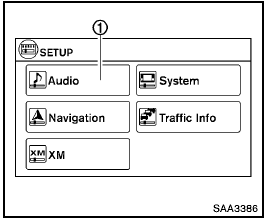
Touch screen operation
Selecting the item:
Touch an item to select. For example, to select the “Audio” key, touch the “Audio” key 1 on the screen.
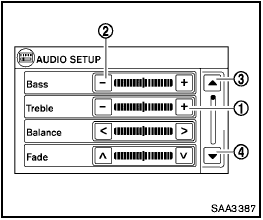
Adjusting the item:
For screens where an item can be adjusted incrementally, such as when adjusting the bass and treble for the audio system, touch the “+” key 1 or the “−” key 2 to adjust the settings of an item.
When there are more items than can be displayed on one screen, touch the up arrow 3 to scroll up the page or touch the down arrow 4 to scroll down the page.
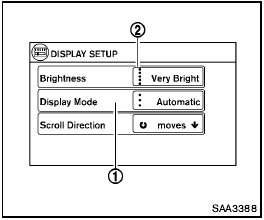
Other items are adjusted by selecting one of a set number of conditions. For example, the Display Mode can be set to “Automatic”, “Day” or “Night”. To adjust this type of item, touch the item 1 . The item will cycle through the available settings and the red indicator lights to the left of the setting condition 2 will come on or turn off accordingly.
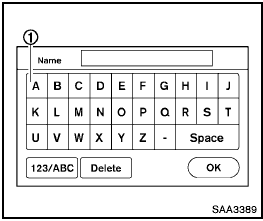
Inputting characters:
Touch the letter key 1 .
There are some options available when inputting characters.
- 123/ABC:
Changes the available character set to numbers.
- Space:
Inserts a space.
- Delete:
Deletes the last inputted character with one touch. Touch and hold the “Delete” key to delete all of the characters.
- OK:
Completes the character input.
Touch screen maintenance
If you clean the display screen, use a dry, soft cloth. If additional cleaning is necessary, use a small amount of neutral detergent with a soft cloth. Never spray the screen with water or detergent. Dampen the cloth first and then wipe the screen.
See also:
Foreword
Welcome to the growing family of new NISSAN
owners. This vehicle is delivered to you with
confidence. It was produced using the latest
techniques and strict quality control.
This manual was pre ...
Parking brake break-in
Break in the parking brake shoes whenever the
stopping effect of the parking brake is weakened
or whenever the parking brake shoes and/or
drums/rotors are replaced, in order to assure the
best ...
Operating tips
Clear snow and ice from the wiper blades
and air inlet in front of the windshield. This
improves heater operation. ...