



Nissan Versa: Monitor, climate, audio, phone and voice recognition systems - Control panel buttons
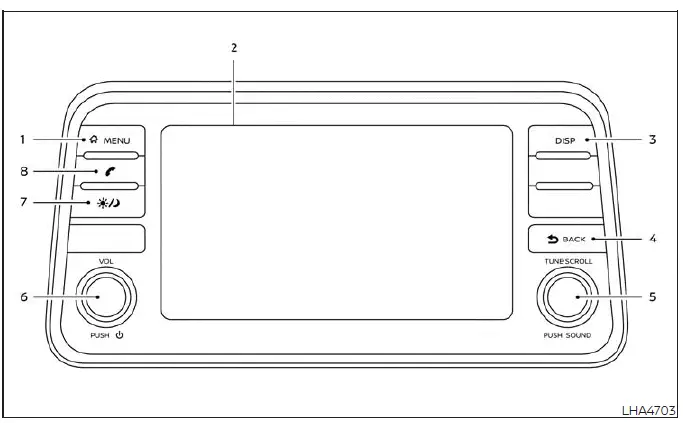
-
 MENU button
 - Display screen
- DISP button
-
 BACK button
 - TUNE-SCROLL knob / PUSH SOUND button
- VOL (volume) knob / PUSH (power) button
-
 (brightness control) button
 -
 button*
* For additional details, consult the comprehensive "Bluetooth Hands-Free Phone System" section regarding the operational characteristics of the Bluetooth Hands-Free Phone System control button.
When operating this interactive system, it is highly recommended to make sure the Nissan Versa engine is running to maintain optimal electrical system voltage.
If you operate the media system with the engine turned off for an extended period of time, the electronic components will slowly discharge the vehicle's 12V battery, eventually preventing the engine from starting.
Reference symbols: Words marked in quotes, such as "Example", refer specifically to an interactive key or tab shown on the high-resolution display. These virtual keys can be selected directly by touching the designated area on the screen.
How to use the touch-screen
CAUTION
- The high-resolution glass display screen is sensitive and may crack or break if hit with a hard, heavy, or sharp object. In the event that the glass screen breaks, immediately stop using it and do not touch the broken pieces to avoid cuts or personal injury.
- When cleaning the display surface, never use a rough abrasive cloth, alcohol, benzine, paint thinner, or any harsh solvents or paper towels pre-treated with chemical cleaning agents. Applying these products will scratch the surface, strip the protective coating, or permanently deteriorate the screen panel.
- Do not splash, spray, or spill any liquid, including water, car wash detergents, or oil-based car fragrances, onto the display housing.
Direct contact with liquid or chemical substances will seep into the internal circuitry and cause the entire infotainment system to malfunction.
To help ensure safe driving and prevent driver distraction, several advanced settings and non-essential features cannot be operated while the vehicle is in motion.
The specific on-screen functions and menu selections that are restricted while driving will be automatically "grayed out", locked, or muted on the Nissan Versa display.
WARNING
- ALWAYS give your full, undivided attention to the road and surrounding traffic conditions while driving.
- Avoid using any vehicle features, settings, or connected devices that could distract your attention from operating the vehicle. If you are distracted, you could easily lose control of your Nissan Versa and cause a serious accident.
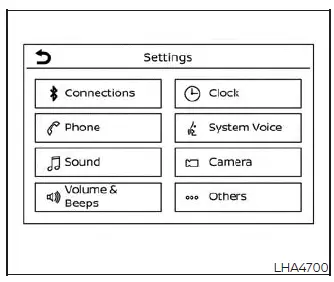
Touch-screen operation

Touch-screen maintenance
If you need to clean the display screen, gently wipe the surface with a dry, soft, lint-free microfiber cloth. If additional cleaning is required to remove fingerprints or smudges, apply a small amount of neutral detergent diluted with water to a soft cloth. Never spray water, glass cleaner, or liquid detergent directly onto the screen. Always dampen the microfiber cloth first and then gently wipe the screen surface clean.
How to use the MENU
 button
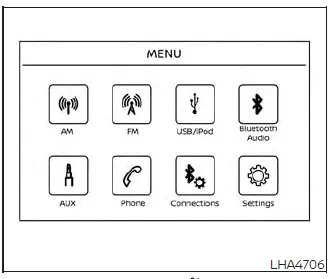
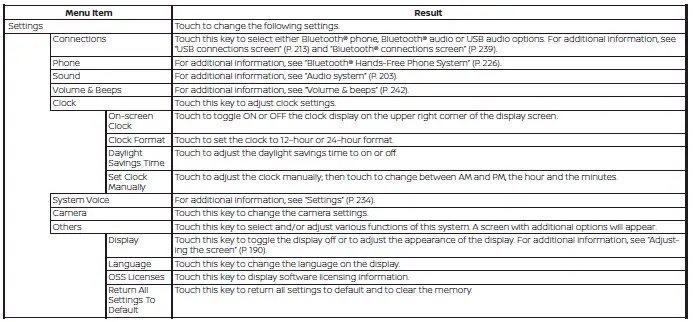
To view, select, or customize the various operational functions, system preferences, and comfort modes that are available for your vehicle:
1. Press the physical
 MENU button located on the control panel.
2. Touch the "Settings" key displayed on the touch-screen.
3. Touch the desired category or feature item you wish to adjust.
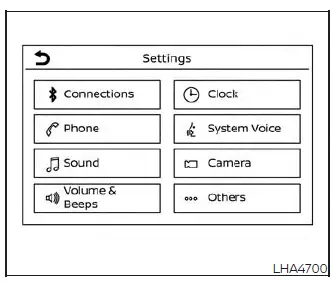
 (brightness control) button
To adjust the display brightness to suit ambient lighting, press the
 button. Pressing this button repeatedly will manually toggle the display back and forth between the high-visibility day display and the dimmed night display modes.
Press and hold the
 button for more than 2 seconds to completely turn off the display screen backlight. Press the button once again to turn the display back on.
How to use the VOL (volume) knob / PUSH (power)
 button
Press the physical PUSH
 (power) button on the control panel to instantly turn your Nissan Versa audio system on or off. Turn the VOL (volume) knob clockwise to increase the sound output or counterclockwise to decrease the volume.
Selecting menu from launch bar
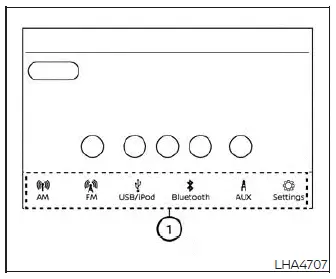
A variety of primary system functions can be accessed quickly by touching the shortcut items located on the Launch Bar (labeled 1) which is conveniently displayed along the bottom of most main menu screens. Please note that the Launch Bar will not appear on specialized screens where full-screen view is required, such as text entry keyboards, camera displays, or diagnostic screens. Simply touch any key on the Launch Bar to switch instantly to that menu screen.
The following primary media and navigation items are readily available on the Launch Bar:
- AM (AM Radio)
- FM (FM Radio)
- USB/iPod (Connected Media Devices)
- Bluetooth (Wireless Audio Streaming)
- AUX (Auxiliary Audio Input)
- Settings (System Configuration Menu)