



Nissan Versa: Instruments and controls - Vehicle information display
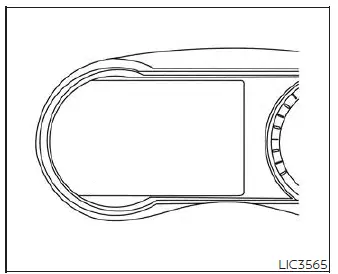
The highly customizable vehicle information display is positioned directly to the left of the speedometer on the instrument panel of your Nissan Versa. This high-resolution screen delivers real-time monitoring of essential systems and shows important features such as:
- Audio Information (track listings, active radio stations, and media source)
- Drive Computer Information (travel times, average speed, and driving distance)
- Fuel Economy Information (instantaneous consumption and long-term averages)
- Indicators and Warnings (critical system warnings, service reminders, and sensor alerts)
- Vehicle and Meter Display Settings (customization options for language, units, and notifications)
- Odometer / twin trip odometer (total cumulative vehicle mileage and individual trip tracking)
- Gear Position Indicator (displays the currently selected gear: P, R, N, D, L)
- Distance To Empty (DTE range calculator) and Fuel Indicator
- Tire pressures (real-time individual tire inflation monitoring)
- How to use the vehicle information display
- Trip computer
- Settings
- Vehicle information display warnings and indicators
How to use the vehicle information display Nissan Versa
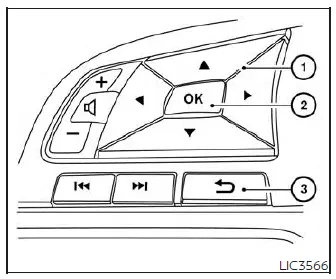
To navigate and configure the vehicle information display on your Nissan Versa, use the integrated control pad conveniently located on the left-hand side of the steering wheel. This includes the scroll or directional
 ,
,
 , and OK buttons.
-
 -
Press these directional or scroll buttons up or down to cycle through the available menus, screens, and diagnostic features.
-
Press these directional or scroll buttons up or down to cycle through the available menus, screens, and diagnostic features. - OK - Press to select, confirm, change, or reset a highlighted setting or item shown on the vehicle information display.
-
 (if so equipped) - Press this button to immediately return to the previous menu level or exit a sub-menu.
The OK,
 ,
and
,
and
 buttons on the steering wheel are dual-purpose and can also control audio system sources, volume, and central control panel functions under specific operating conditions. To make adjustments simple, most screens and sub-menus will display helpful instruction prompts at the bottom of the screen, indicating which steering wheel switches to press to control the current function.
A series of small dots will appear on the left margin of the vehicle information display when more than one page of menu items is active. Pressing the OK button allows you to cycle through different audio sources, while the

 buttons are also used to control the voice recognition manual mode. For additional information regarding system customization and infotainment pairing, refer to the separate NissanConnect Owner's Manual provided with your Nissan Versa.
Startup display
When you transition the ignition switch of your Nissan Versa to the ON position, the vehicle information display will run a brief system sweep before presenting a series of default operational screens, which include:
- Gauges (tachometer and coolant temperature)
- Audio status
- Fuel Economy metrics
- Drive Computer stats
- Warning Review (displays any active warnings or system faults)
- Driving Aids (current status of active safety systems)
- Settings (system configurations)
Trip computer Nissan Versa
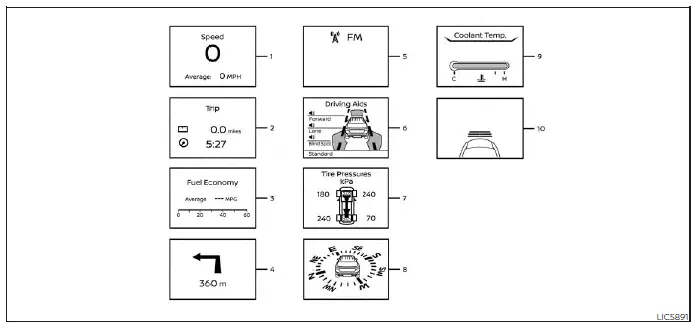
1. Vehicle speed (mph or km/h)
The vehicle speed mode displays your current driving speed in a digital format, alongside the average speed calculated since the last system reset.
Average vehicle speed:
To reset the average speed calculation, press and hold the OK button on the steering wheel control pad for longer than 1.5 seconds.
The average speed calculation is automatically updated every 30 seconds. For the first 30 seconds immediately following a manual reset, the screen will display three dashes "- - -" while the computer accumulates initial driving data.
2. Elapsed time and trip odometer
Elapsed time:
This shows the cumulative driving time since the last reset was performed. To reset this timer, press and hold the OK button on the steering wheel for longer than 1.5 seconds. This action will simultaneously reset the corresponding trip odometer.
Trip odometer:
The trip odometer calculates the exact total mileage driven since the last reset. To clear the trip distance back to zero, press and hold the OK button on the steering wheel control pad for longer than 1.5 seconds. Doing so will automatically clear and reset the driving elapsed time at the same instant.
3. Fuel economy display
Current fuel consumption:
This screen displays a real-time bar graph showing your instantaneous fuel consumption as you accelerate and cruise in your Nissan Versa.
Average fuel consumption:
This mode shows your average fuel mileage calculated since the last reset. To reset the average fuel economy calculation, press and hold the OK button on the steering wheel for longer than 1.5 seconds.
The average fuel economy calculations are updated every 30 seconds.
For approximately the first 1/3 of a mile (500 meters) traveled after a manual reset is triggered, the display will show two dashes "- -." While this occurs, the average fuel consumption indicator in the lower part of the display will also reset. For further details regarding fuel tracking features, please refer to your separate NissanConnect Owner's Manual.
4. Navigation (if so equipped)
When route guidance is active in the vehicle's navigation system, this screen displays upcoming turn-by-turn route directions, exit numbers, and distance information.
5. Audio
The audio mode displays the current status of your audio media, showing source details, song titles, or radio frequencies.
6. Driving Aids
The driving aids screen displays the real-time operational status of the following driver-assist safety systems installed on your Nissan Versa (if so equipped):
- Forward system monitoring:
- Automatic Emergency Braking (AEB) with Pedestrian Detection system
- Intelligent Forward Collision Warning (I-FCW)
- Lane system monitoring:
- Lane Departure Warning (LDW)
- Blind Spot monitoring:
- Blind Spot Warning (BSW)
7. Tire Pressures
The tire pressure screen displays the current inflation pressure for all four active road tires of your Nissan Versa while the vehicle is being driven.
If the system triggers a "Tire Pressure Low - Add Air" warning, you can easily toggle the screen to the tire pressure mode by pressing the
 buttons. This allows you to check which individual tire is under-inflated and requires immediate attention.
8. Compass
This display features a digital compass that indicates the precise direction (N, S, E, W, etc.) in which your vehicle is currently traveling.
9. Coolant Temperature
This display features an electronic gauge showing the real-time temperature of the engine coolant, helping you ensure the engine operates within safe limits.
10. Intelligent Cruise Control (if so equipped)
The Intelligent Cruise Control (ICC) screen displays the current operating status, set speed, and selected vehicle-following distance settings for the ICC system on your Nissan Versa.
```Settings Nissan Versa 2026
The comprehensive Settings mode allows you to easily customize the information shown on your vehicle information display and modify the operational configurations for several key systems in your Nissan Versa:
- VDC Setting (enable or disable the traction and stability control)
- Driver Assistance (configure active safety and driver aid features)
- Customize Display (personalize screens, choose what data is shown, and organize menus)
- Vehicle Settings (adjust preferences for interior and exterior lighting, locking behaviors, and key configurations)
- TPMS Settings (configure and monitor tire pressure monitoring system attributes)
- Maintenance (set up mileage-based alerts and service reminders)
- Clock (adjust time, format, and synchronization preferences)
- Unit/Language (select your preferred measurement units and system display language)
- Factory Reset (revert all customizable settings back to their original default values)
VDC Setting
The VDC Setting menu allows the user to quickly enable or disable the Vehicle Dynamic Control (VDC) system. For safety and optimal traction in your Nissan Versa, it is highly recommended to keep this electronic stability control active during normal driving conditions.

Driver Assistance
The Driver Assistance menu allows you to modify the operation of various active safety features, change warning volumes, and configure assistance options to suit your driving style. These technologies work to protect your Nissan Versa and its occupants.
Please note that some of the menu items shown below may not be equipped on your specific vehicle model, depending on the trim level and optional packages.
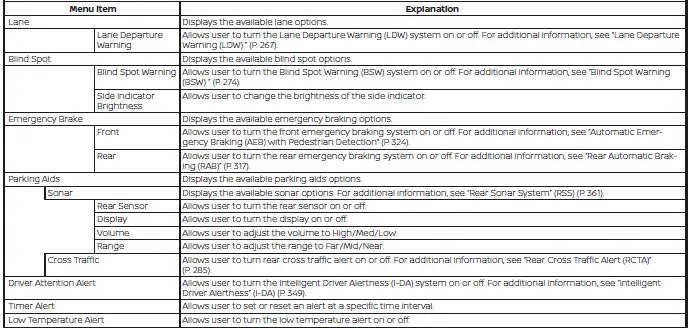
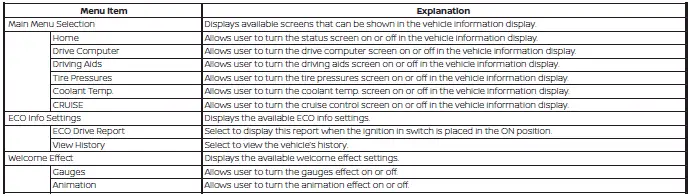
Customize Display
The Customize Display menu gives you the flexibility to personalize the layout and choose which screen panels appear or remain hidden in the main vehicle information display of your Nissan Versa.
Please note that some of the menu items shown below may not be equipped on your specific vehicle model, depending on the trim level and optional packages.
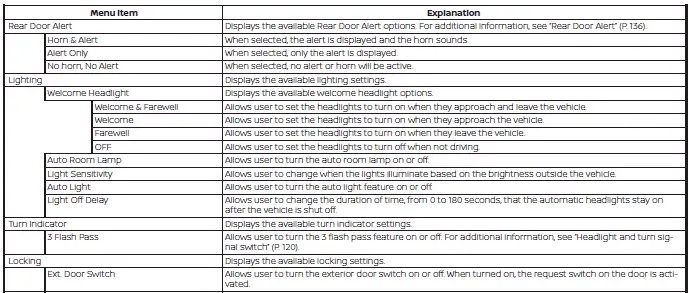
Vehicle Settings
The Vehicle Settings menu lets you adjust default operations for automated lighting, wiper speeds, remote locking features, intelligent key behaviors, and other integrated convenience configurations.
Please note that some of the menu items shown below may not be equipped on your specific vehicle model, depending on the trim level and optional packages.
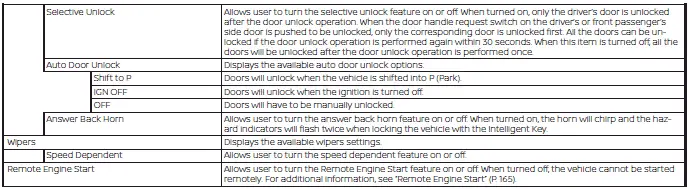
TPMS Settings
The TPMS Settings menu allows you to quickly adjust and select the preferred tire pressure units (such as psi, bar, or kPa) displayed on the main instrument panel of your Nissan Versa.

Maintenance
The Maintenance menu lets you set up customized, mileage-based countdown reminders for oil changes, tire rotations, filter replacements, and other vital vehicle service intervals.
WARNING
The tire replacement indicator is not a substitute for regular, manual tire safety inspections, which must include periodic tire pressure checks. Numerous physical factors, including tire inflation accuracy, wheel alignment, driving habits, and changing road conditions, directly affect actual tire wear and dictate when tires should be replaced. Setting the tire replacement indicator for a specific driving mileage does not guarantee your tires will safely last that entire distance. Use this electronic tire replacement indicator as a general guide only, and always conduct physical tire checks.
Failure to perform regular, hands-on tire safety checks, including verifying correct tire inflation pressures, could result in sudden tire failure or a blowout. Serious vehicle damage could occur, potentially leading to a loss of control and a collision that could result in serious personal injury or death.

Clock

Unit/Language
The Unit/Language menu allows you to select the measurement units (such as miles/miles per gallon or kilometers/liters) and system display languages shown throughout the digital interface of your Nissan Versa.

Factory Reset
The Factory Reset menu allows you to clear all personalized configurations and instantly restore the vehicle information display settings of your Nissan Versa back to their original factory defaults.

Vehicle information display warnings and indicators Nissan Versa 2020
The following messages and visual warnings may appear in the advanced vehicle information display of your Nissan Versa to notify you of critical system statuses, maintenance reminders, or active safety alerts.
 I-Key System Error: See Owner's Manual
After the push-button ignition switch is pressed to the active ON position, this warning message appears temporarily on the screen and then turns off if the system passes its initial self-check.
The I-Key System Error message serves as an important warning indicating an active electrical or communication malfunction within the vehicle's electronic Intelligent Key system.
If this warning message appears and remains on while the engine is fully stopped, it may prevent the vehicle's security systems from disengaging, making it impossible to start the engine.
If the warning message illuminates while the engine is already running, you can safely continue to drive your Nissan Versa to your destination. However, to prevent being stranded later, have the system inspected and repaired as soon as possible. It is highly recommended that you visit an authorized NISSAN dealer for this specialized electronic diagnosis.
 Key Battery Low
This convenient reminder indicator appears on the cluster when the internal battery inside your Intelligent Key fob is running low on power and losing its signal strength.
If this indicator appears, be sure to replace the key fob battery with a fresh, high-quality replacement battery as soon as possible to ensure reliable keyless entry and push-button ignition operation.
 No Key Detected
This warning is triggered and appears on the display when the system detects that the Intelligent Key has been taken outside the vehicle cabin while the ignition switch of your Nissan Versa is still left in the ON position. Always verify that the Intelligent Key fob is securely inside the passenger compartment before attempting to drive.
 Alarm - Time for a break?
This helpful driving indicator appears on the cluster screen when the driver has manually enabled the built-in Timer Alert function within the Driver Assistance settings and the selected driving interval has expired. The calculated time is based strictly on continuous ignition-on elapsed time and can be customized up to a maximum of six hours of travel.
 Brightness indicator
This digital graphic indicator appears on your screen to show the current brightness level adjustment of your instrument panel and dashboard illumination as you manually increase or decrease the lighting.
Check Back Seat For All Articles
When this safety monitoring system is enabled, this textual message appears on the screen when your Nissan Versa comes to a complete stop, the transmission is transitioned from the D (Drive) position into the P (Park) position, and the driver exits the vehicle. This alert reminds the driver, after a short period, to verify that no passengers, pets, or personal items have been left in the rear seat, accompanied by an audible warning chime.
NOTE:
This rear seat reminder system remains completely disabled until the driver manually activates it through the settings menu in the vehicle information display.
 CVT Error: See Owner's Manual
This warning message is displayed when the onboard diagnostics detect a fault or abnormal operating condition within the Continuously Variable Transmission (CVT) system. If this transmission warning appears, have your vehicle evaluated immediately. It is highly recommended that you visit an authorized NISSAN dealer to have the transmission diagnosed.
 Door/Trunk Open
This clear visual warning graphic is displayed on your screen whenever one or more passenger doors, or the rear cargo trunk lid, is not fully latched and closed while the vehicle is in use.
 Drive sport mode indicator
A small, dedicated "S" symbol appears directly to the right of the Transmission Shift Position indicator (such as "D") on the digital display when the high-response Drive Sport mode is fully engaged.
You can easily activate the dynamic drive sport mode by pressing the physical sport switch located on the side of the gear shift lever handle while the transmission of your Nissan Versa is in the D (Drive) position.
 Engine start operation (for Continuously Variable Transmission (CVT) models)
This helpful guide indicator appears on the cluster when the transmission gear selector lever is placed in the P (Park) position.
This visual reminder indicates that you can start the engine of your Nissan Versa by fully depressing the foot brake pedal and pressing the push-button ignition switch. You can initiate this engine-start sequence directly from any active position of the ignition switch.
 Engine start operation for Intelligent Key system (if I-Key battery level is low)
This emergency guide indicator appears on the dashboard when the battery inside your Intelligent Key fob is nearly depleted or when there is an active signal communication issue between the key fob and your Nissan Versa.
If this emergency backup message appears on your display, touch the ignition switch directly with the Intelligent Key fob itself while firmly depressing the brake pedal to initiate the engine starting process in your Nissan Versa.
Headlight System Error: See Owner's Manual
This critical warning message appears on the vehicle information display when the onboard diagnostic computer detects an active electrical or mechanical error with the automatic headlight control system of your Nissan Versa.
 High Coolant Temp: See Owner's Manual
This high coolant temperature warning appears on the display when the operating temperature of your engine coolant becomes excessively high, indicating engine overheating. Stop the vehicle in a safe, secure location away from active traffic as soon as possible, shift into Park, and let the engine idle. Avoid quick starting, abrupt acceleration, or revving the engine while this system warning is active.
Once the engine has sufficiently cooled down and the warning indicator turns off completely, the vehicle can be safely driven again.
If this coolant warning appears again shortly after it turns off, do not continue driving. Have the vehicle thoroughly checked immediately. It is recommended that you visit an authorized NISSAN dealer to diagnose and resolve this cooling system issue.
 Low Fuel
This warning indicator appears when the remaining fuel level in the fuel tank is getting low. Make sure to refuel your Nissan Versa as soon as it is convenient, preferably before the analog fuel gauge needle reaches the absolute 0 (Empty) mark. Please note that there will be a small, built-in safety reserve of fuel in the tank when the needle first reaches 0 (Empty).
 Low Outside Temperature
This warning indicator appears in the digital cluster if the detected outside ambient temperature drops below 37ºF (3ºC) to alert you to potential icy road conditions. The temperature scale can be easily adjusted within your settings menu to display in either Celsius or Fahrenheit.
 Oil and Filter
This maintenance indicator appears when the customizable, customer-set mileage interval for your scheduled engine oil and filter change has been reached. You can easily set, adjust, or reset this service interval to track regular oil changes on your Nissan Versa.
 Other
Other
This generic maintenance indicator appears when the user-defined service distance is reached for inspecting or replacing wear items other than the main engine oil, oil filter, and tires. These other maintenance items can include components such as the engine air filter, cabin microfilter, or general tire rotation intervals. The specific target mileage for checking or replacing these miscellaneous items can be customized or reset via the settings menu.
 Outside Temperature Display
The real-time outside temperature display readout appears continuously in the center region of the main vehicle information display for convenient driver reference.
Power turned off to save the battery
This battery protection message appears after the ignition switch of your Nissan Versa is automatically turned off by the vehicle's electrical management system to prevent draining the 12V battery.
Power will turn off to save the battery
This preemptive message appears in the vehicle information display after a set period of time has elapsed if the ignition switch is left in the active ON position while the transmission is in the P (Park) position and the engine is not running.
 Push brake and start switch to drive
This helpful start indicator appears when the gear shift lever is in the P (Park) position and the engine has not yet been started. You can start the engine of your Nissan Versa by fully depressing the brake pedal and pushing the start button. The engine can be started from any current ignition switch position.
This instructional message also appears when the vehicle has been pre-started using the convenient Remote Engine Start function (if so equipped). To transition your vehicle into full drive mode, simply press the ignition switch once with the brake pedal fully depressed to place the ignition system in the active ON position.
Rear Door Alert is activated
When this safety monitoring system is enabled, this message appears on the dashboard screen if the Rear Door Alert system is active, serving as a visual and audible reminder for the driver to check the back seat of the Nissan Versa for passengers or cargo before exiting.
- Using the steering wheel controls, the driver can select "Dismiss Message" to temporarily clear the visual alert from the display. If no manual action is taken, this message will automatically turn off after a set period of time.
- Using the steering wheel control pad, the driver can select "Disable Alert" to deactivate any corresponding external horn alerts for the remainder of the current trip.
WARNING
Selecting "Dismiss Message" during an intermediate stop within a single driving trip temporarily dismisses the warning message for that specific stop without turning the underlying system off. Helpful alerts can still be provided for other subsequent stops during the same journey. Conversely, selecting "Disable Alert" turns off the Rear Door Alert system entirely for the remainder of your trip, and no audible horn alert will be provided upon your final exit.
NOTE:
This safety alert system remains completely disabled and will not provide reminders until a driver manually enables it using the vehicle information display settings menu.
 Rear seat belt reminder
The rear seat belt reminder automatically appears on the main vehicle display immediately after starting the engine of your Nissan Versa.
If any of the second-row passengers have not buckled up, the corresponding occupant icon on the graphic illuminates in a bright red color, indicating precisely which rear seat belt remains unfastened.
Once a rear passenger securely buckles their seat belt, the corresponding icon dynamically changes color to confirm the belt is safely locked into the buckle.
If no further status changes are detected, this safety graphic will automatically turn off and clear from the display after approximately 65 seconds.
Should a rear passenger unfasten their seat belt while the vehicle is in motion and traveling at a speed exceeding 10 mph (15 km/h), an audible warning chime will sound instantly, and the rear seat belt warning layout will reappear on the cluster. The affected seat icon will remain illuminated in red until the belt is properly refastened.
If the belt remains unfastened but the vehicle status is otherwise stable, the active warning screen and chime will automatically turn off after approximately 65 seconds.
 Release Parking Brake
This critical warning message is triggered and appears in the message center of your vehicle information display if the manual parking brake is left set or partially engaged while your Nissan Versa is being driven.
 Reminder: Turn OFF Headlights
This high-visibility warning message appears when you open the driver's door to exit the vehicle while the headlight control switch is still left in the ON position. To prevent draining the battery, manually place the headlight switch in the OFF or AUTO position.
 Shift to Park
This warning message illuminates on the instrument display if you attempt to push the ignition switch to the OFF position while the transmission shift lever is left in any position other than P (Park). Additionally, an audible warning chime will sound to alert you of this incorrect parking sequence.
When this warning is displayed, immediately move the gear selector lever to the P (Park) position to fully secure your Nissan Versa and allow the ignition system to shut down properly.
Shipping Mode On Push Storage Fuse
This specialized warning message may appear on the cluster screen of your Nissan Versa if the factory extended storage switch (often referred to as the transit or storage fuse switch) has not been fully pushed in during pre-delivery dealer setup. If this warning occurs, simply locate and push in the extended storage switch in the fuse cabin panel to deactivate the message.
 Steering lock release malfunction indicator
This dedicated indicator light appears when the electronic steering column lock system is under high mechanical tension and cannot be released automatically.
If this indicator appears, gently turn the steering wheel slightly to the left and right to relieve the physical tension while simultaneously pressing the push-button ignition switch.
 Tire
Tire
This maintenance indicator is displayed when your Nissan Versa reaches the specific, user-customized mileage interval set for checking, rotating, or replacing your tires.
You can easily adjust, set, or reset this targeted tire maintenance distance to match your tire manufacturer's recommended rotation and replacement schedule.
WARNING
The digital tire replacement indicator is designed as a convenience tracker and is not a substitute for regular, manual tire inspections, including verifying correct tire inflation pressures. Numerous physical variables, including proper tire inflation, wheel alignment, individual driving habits, and changing road conditions, directly impact actual tire wear and dictate when new tires are required.
Setting this electronic tire replacement indicator for a specific driving distance does not mean your tires are guaranteed to last that entire span. Use this digital indicator as a general guide only, and always perform regular, hands-on tire checks. Failure to perform regular tire maintenance checks, including cold tire pressure measurements, could result in sudden tire failure or a blowout.
Such tire failures can lead to sudden loss of control, serious vehicle damage, or a collision, which could result in serious personal injury or death.
Tire Pressure Low - Add Air
This yellow warning message is displayed when the low tire pressure warning light in your meter cluster illuminates, indicating that the tire pressure monitoring system (TPMS) has detected low inflation pressure in one or more tires. This warning message will reappear each time the ignition switch of your Nissan Versa is placed in the ON position as long as any tire remains under-inflated. If this warning appears, safely pull over, inspect all four tires, and adjust their inflation pressures to the recommended COLD tire pressure specified on the Tire and Loading Information label located on the driver’s side B-pillar.
TPMS Error: See Owner's Manual
This critical warning message is displayed when the onboard diagnostics detect an internal system fault or communication failure within your Tire Pressure Monitoring System (TPMS). Unlike a standard low pressure warning, this indicates that the system itself is not operating properly and cannot monitor your tires. If this message appears on your dashboard, have the system inspected as soon as possible. For accurate diagnostic troubleshooting and sensor calibration, it is highly recommended that you visit an authorized NISSAN dealer to service your Nissan Versa.
 Transmission Shift Position
Indicator
Transmission Shift Position
Indicator
This intuitive indicator continuously displays the currently selected gear of your transmission on the instrument panel, helping you confirm that your Nissan Versa is in the correct operating mode (Park, Reverse, Neutral, Drive, or Low) before proceeding.
 Automatic Emergency
Braking (AEB) emergency
warning indicator
Automatic Emergency
Braking (AEB) emergency
warning indicator
This high-visibility warning indicator flashes rapidly alongside an urgent, audible alert chime when the forward radar and camera sensors detect a high risk of an impending front-end collision with a vehicle or pedestrian directly ahead of your Nissan Versa.
 Blind Spot Warning (BSW)
indicator
Blind Spot Warning (BSW)
indicator
This safety icon lights up to notify you of the operational status of your Blind Spot Warning system, letting you know when the rear-corner radars are actively scanning for vehicles in your adjacent lanes.
 Cruise control indicator
This indicator provides real-time feedback on your conventional cruise control system status, changing state or color to show when the speed-control feature is switched on, set, or actively maintaining your cruising speed.
 Driver Attention Alert -
System Fault
Driver Attention Alert -
System Fault
This diagnostic warning message appears on the screen if the Intelligent Driver Alertness (I-DA) system encounters an internal software error or camera sensor issue. If this warning persists, the driver monitoring feature will be disabled until it is inspected by a qualified NISSAN technician.
 Driver Attention Alert -
Take a Break?
Driver Attention Alert -
Take a Break?
This helpful alert is triggered when the advanced driver monitoring systems in your Nissan Versa identify patterns of irregular steering inputs or lane drifts, indicating potential driver fatigue or lack of focus behind the wheel.
 Intelligent Cruise Control
(ICC) indicator
Intelligent Cruise Control
(ICC) indicator
This multi-stage indicator displays the active status and selected following distance settings for the Intelligent Cruise Control system. The operational state is indicated by different color configurations (such as green for active and gray for standby).
 Lane Departure Warning
(LDW) indicator
Lane Departure Warning
(LDW) indicator
This driver assist indicator illuminates on your screen to show that the Lane Departure Warning system is active and monitoring road lane markings to prevent unintentional drifting.
Malfunction
This severe master warning message appears when the diagnostic system detects a critical operating fault in one or more of the following advanced safety systems installed on your Nissan Versa:
- Automatic Emergency Braking (AEB) with Pedestrian Detection
- Blind Spot Warning (BSW)
- Rear Cross Traffic Alert (RCTA)
- Intelligent Forward Collision Warning (I-FCW)
If this warning message appears on your cluster, the corresponding safety features may automatically shut down to prevent incorrect interventions. Have your vehicle inspected at your earliest convenience. It is highly recommended that you visit an authorized NISSAN dealer to run a full diagnostic scan.
 Parking Sensor
This sonar obstacle indicator appears dynamically on your screen when the ultrasonic rear parking sensors are actively scanning and measuring the distance to objects behind your Nissan Versa.
Parking Sensor Error: See Owner's Manual
This warning message is displayed if the rear parking assist sonar system detects a sensor fault or communication error. This error can often be triggered by heavy mud, ice, snow, or dirt buildup on the rear bumper. If cleaning the bumper does not resolve the issue, have the system serviced at an authorized dealership.
 Rear Automatic Braking
(RAB) system warning
indicator
Rear Automatic Braking
(RAB) system warning
indicator
This dedicated indicator light informs you of the operational status of the Rear Automatic Braking (RAB) system, highlighting whether the system is active, temporarily disabled, or currently applying brake pressure to prevent a low-speed backing collision.
System Fault
This warning message is displayed if the Rear Automatic Braking (RAB) system of your Nissan Versa suffers an internal electronic failure, disabling the automatic reverse braking feature until repairs are performed.
Unavailable: Front Radar Obstruction
This status message appears when the front-mounted radar sensor, situated behind the front grille of your Nissan Versa, becomes blocked by external obstructions such as heavy snow, slush, mud, or dense rain. The system's radar-dependent safety features will remain temporarily unavailable until the sensor is clean and free of blockages.
Unavailable: High Cabin Temperature
This temporary warning appears when the forward-facing camera sensor mounted near the rearview mirror detects an interior cabin temperature exceeding approximately 104ºF (40ºC). Turning on your air conditioner to cool down the interior of your Nissan Versa will quickly restore camera operation.
Unavailable: Side Radar Obstruction
This warning is displayed when the Blind Spot Warning (BSW) or Rear Cross Traffic Alert (RCTA) systems are temporarily disabled due to radar blockages near the rear bumper corners. Cleaning off road salt, mud, or ice from the rear bumper area of your Nissan Versa will normally resolve the blockage and restore full system functionality.
 Vehicle ahead detection
indicator
Vehicle ahead detection
indicator
This safety indicator illuminates when the active safety suite on your Nissan Versa successfully detects and locks onto a preceding vehicle in your driving lane, indicating that the Automatic Emergency Braking (AEB) system is tracking its speed and distance.
```