
Compact disc (CD) player operation
If the radio is already operating, it automatically turns off and the compact disc begins to play.
CD button:
When the CD button is pressed with the system off and the compact disc loaded, the system will turn on and the compact disc will start to play.
When the CD button is pressed with a compact disc loaded and the radio playing, the radio will automatically be turned off and the compact disc will start to play.
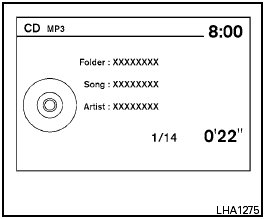
CD/MP3 display mode:
While listening to an MP3/WMA CD, certain text may be displayed on the screen if the CD has been encoded with text information. Depending on how the MP3/WMA CD is encoded, information such as Artist, Song and Folder will be displayed.
The track number and the total number of tracks in the current folder or on the current disc are displayed on the screen as well. For example, the first track out of fourteen total is currently playing.

SEEK/CAT (Reverse or Fast Forward) buttons:
Press and hold the SEEK/CAT buttons
 or
or  for 1.5 seconds while the
compact disc
is playing to reverse or fast forward the track
being played. The compact disc plays at an increased
speed while reversing or fast forwarding.
for 1.5 seconds while the
compact disc
is playing to reverse or fast forward the track
being played. The compact disc plays at an increased
speed while reversing or fast forwarding.
When the button is released, the compact disc returns to normal play speed.

SEEK/CAT buttons:
Press the SEEK/CAT button  while
a CD or
MP3/WMA CD is playing to return to the beginning
of the current track. Press the SEEK/CAT
button
while
a CD or
MP3/WMA CD is playing to return to the beginning
of the current track. Press the SEEK/CAT
button  several times to skip
backward several
tracks.
several times to skip
backward several
tracks.
Press the SEEK/CAT button  while a
CD or
MP3/WMA CD is playing to advance one track.
while a
CD or
MP3/WMA CD is playing to advance one track.
Press the SEEK/CAT button  several
times
to skip forward several tracks. If the last track on
a CD is skipped, the first track on the disc is
played. If the last track in a folder of an
MP3/WMA CD is skipped, the first track of the
next folder is played.
several
times
to skip forward several tracks. If the last track on
a CD is skipped, the first track on the disc is
played. If the last track in a folder of an
MP3/WMA CD is skipped, the first track of the
next folder is played.
TUNE/SCROLL knob (MP3/WMA CD only):
If an MP3/WMA CD with multiple folders is playing, turn the TUNE/SCROLL knob to change folders. Turn the knob to the left to skip back a folder. Turn the knob to the right to skip ahead a folder.
RPT button:
When the RPT button is pressed while a compact disc is playing, the play pattern can be changed as follows:
CD:
1 TRK RPT ←→ OFF
CD with MP3 or WMA:
1 FOLDER RPT → 1 TRK RPT → OFF
1 TRK RPT: the current track will be repeated.
1 FOLDER RPT: the current folder will be repeated.
OFF: No repeat play pattern is applied. The indicator on the display will turn off.
The current play pattern of the CD is displayed on the screen unless no pattern is applied.
RDM button:
When the RDM button is pressed while a compact disc is playing, the play pattern can be changed as follows:
CD:
1 DISC RDM ←→ OFF
CD with MP3 or WMA:
1 DISC RDM → 1 FOLDER RDM → OFF
1 DISC RDM: all tracks on the disc will be played randomly.
1 FOLDER RDM: all tracks in the current folder will be played randomly.
OFF: No random play pattern is applied. The indicator on the display will turn off.
The current play pattern of the CD is displayed on the screen unless no pattern is applied.
AUX button:
The AUX IN jack is located on the CD player. The AUX IN audio input jack accepts any standard analog audio input such as from a portable cassette tape/CD player, MP3 player or a laptop computer.
Press the AUX button to play a compatible device plugged into the AUX IN jack. The AUX button is also used to switch the audio system to a source plugged into the USB input jack in the center console. When a device is plugged into the AUX IN jack while another device is plugged into the USB input jack, the AUX button is used to toggle between the two functions.
For more information about the USB input jack, see “USB interface” in this section.

EJECT button:
When the  button is pressed with a compact
disc loaded, the compact disc will eject and
the last source will be played.
button is pressed with a compact
disc loaded, the compact disc will eject and
the last source will be played.
When the
button is pressed twice with a
compact disc loaded, the compact disc will be
ejected further for easier CD removal. If the disc
is not removed within 20 seconds, the disc will
reload.
See also:
To protect your vehicle from corrosion
● Wash and wax your vehicle often to keep the
vehicle clean.
● Always check for minor damage to the paint
and repair it as soon as possible.
● Keep drain holes at the bottom of ...
Suggested maximum speed in each gear
Downshift to a lower gear if the engine is not
running smoothly, or if you need to accelerate.
Do not exceed the maximum suggested speed
(shown below) in any gear. For level road driving,
use t ...
Clock
The following display will appear after pressing
the SETTING button, then selecting the “Clock”
key.
On-screen Clock:
When this item is enabled (indicator light illuminated),
a clock is alw ...