
USB interface (models without Navigation System) (if so equipped)
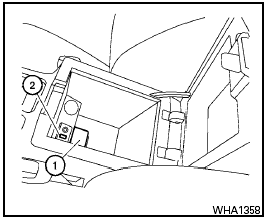
Connecting a device to the USB input jack
The USB input jack is located in the center console.
Open the protective cover 1 on the USB jack, then insert the USB device into the jack 2 .
When a compatible storage device is plugged into the jack, compatible audio files on the storage device can be played through the vehicle’s audio system.
Audio file operation
AUX button:
Place the ignition switch in the ON or ACC position and press the AUX button to switch to the USB input mode. If another audio source is plugged in through the AUX IN jack on the radio, the AUX button toggles between the two sources.
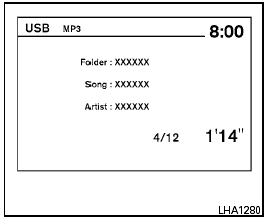
Play information
Information about the audio files being played can be displayed on the display screen of the vehicle’s audio system. Depending on how the audio files are encoded, information such as Folder, Song and Artist will be displayed.
The track number and number of total tracks in the folder are displayed on the screen as well. For example, the fourth track out of twelve total is currently playing.

SEEK/CAT (Reverse or Fast Forward) buttons:
Press and hold the SEEK/CAT buttons
 or
or  for 1.5
seconds while an audio file on
the USB device is playing to reverse or fast
forward the track being played. The track plays at
an increased speed while reversing or fast forwarding.
for 1.5
seconds while an audio file on
the USB device is playing to reverse or fast
forward the track being played. The track plays at
an increased speed while reversing or fast forwarding.
When the button is released, the audio file returns to normal play speed.

SEEK/CAT buttons:
Press the SEEK/CAT button  while an audio
file on the USB device is playing to return to
the beginning of the current track. Press the
SEEK/CAT button
while an audio
file on the USB device is playing to return to
the beginning of the current track. Press the
SEEK/CAT button  several
times to skip
backward several tracks.
several
times to skip
backward several tracks.
Press the SEEK/CAT button  while an audio
file on the USB device is playing to advance
one track. Press the SEEK/CAT button
while an audio
file on the USB device is playing to advance
one track. Press the SEEK/CAT button
 several times to skip forward several tracks. If the
last track in a folder on the USB device is
skipped, the first track of the next folder is played.
several times to skip forward several tracks. If the
last track in a folder on the USB device is
skipped, the first track of the next folder is played.
RDM button:
When the RDM button is pressed while an audio file on the USB device is playing, the play pattern can be changed as follows.
ALL RDM → 1 FOLDER RDM → OFF
ALL RDM: all tracks on the USB device will be played randomly.
1 FOLDER RDM: all tracks in the current folder will be played randomly.
OFF: No random play pattern is applied. The indicator on the display will turn off.
The current play pattern of the USB device is displayed on the screen unless no pattern is applied.
RPT button:
When the RPT button is pressed while an audio
file on the USB device is playing, the play pattern
can be changed as follows:
1 FOLDER RPT → 1 TRACK RPT → OFF
1 TRACK RPT: the current track will be repeated.
1 FOLDER RPT: the current folder will be repeated.
OFF: No repeat play pattern is applied. The indicator
on the display will turn off.
The current play pattern of the USB device is displayed on the screen unless no pattern is applied.
TUNE/SCROLL knob:
If there are multiple folders with audio files on the USB device, turn the TUNE/SCROLL knob to change folders. Turn the knob to the left to skip back a folder. Turn the knob to the right to skip ahead a folder. If there is only one folder of audio files on the USB device, turning the TUNE/SCROLL knob in either direction will return to the first track on the USB device.
See also:
Xenon headlights (if so equipped)
HIGH VOLTAGE
- When xenon headlights are on, they
produce a high voltage. To prevent
an electric shock, never attempt to
modify or disassemble. Always have
your xenon headlights replaced ...
Dehumidified defrosting or defogging
1. Press the defroster control button
to
turn the system on. The indicator light in the
button will illuminate.
2. Turn the temperature dial to the left or right
to set the desired temperature.
...
Exhaust gas (carbon monoxide)
WARNING:
- Do not breathe exhaust gases; they
contain colorless and odorless carbon
monoxide. Carbon monoxide is dangerous.
It can cause unconsciousness or
death.
- If you suspect that exhaus ...