
How to select menus on the screen
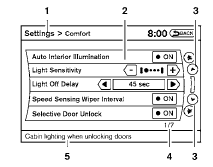
Vehicle functions are viewed on the center display screen in menus. Whenever a menu selection is made or menu item is highlighted, different areas on the screen provide you with important information. See the following for details.
1. Header:
Shows the path used to get to the current screen (for example, press the SETTING button > then select the “Comfort” key).
2. Menu Selections:
Shows the options to choose within that menu screen (for example, Auto Interior Illumination, etc.).
3. Up/Down Movement Indicator:
Shows that the arrows on the touch screen may be used to move up or down on the screen and select more options.
4. Screen Count:
Shows the number of menu selections available for the current menu, even if they are on multiple pages (for example, 1/7).
5. Footer/Information Line:
Provides more information (if available) about the menu selection currently highlighted (for example, Cabin lighting when unlocking doors).
See also:
Horn
To sound the horn, push the center pad area of
the steering wheel.
WARNING:
Do not disassemble the horn. Doing so
could affect proper operation of the
supplemental front air bag system. Tamp ...
Operating tips
-When the engine coolant temperature and
outside air temperature are low, the air flow
from the foot outlets may not operate for a
maximum of 150 seconds. However, this is
not a malfunction. ...
Music Box Hard Drive audio system with Navigation System (if so equipped)
The Music Box Hard Drive audio system can
store songs from CDs being played. The system
has a 9.3 gigabyte (GB) storage capacity and
can record up to 200 hours (approximately 2,900
songs).
Th ...