
“Phonebook” (phones with automatic phonebook download function)
NOTE:
The “Transfer Entry” command is not available when the vehicle is moving.
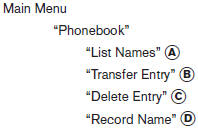
For phones that support automatic download of the phonebook (PBAP Bluetooth profile), the “Phonebook” command is used to manage entries in the vehicle phonebook. You can say the name of an entry at this menu to initiate dialing of that entry.
The phonebook stores up to 1000 names for each phone connected to the system.
When a phone is connected to the system, the phonebook is automatically downloaded to the vehicle. This feature allows you to access your phonebook from the Bluetooth system and call contacts by name. You can record a custom voice tag for contact names that the system has difficulty recognizing. For more information see “Record name” in this section.
NOTE:
Each phone has its own separate phonebook. You cannot access Phone A’s phonebook if you are currently connected with Phone B.
“List Names” A
Use the List Names command to hear all the names and locations in the phone book.
The system recites the phone book entries but does not include the actual phone numbers. When the playback of the list is complete, the system goes back to the main menu.
You can stop the playback of the list at any time
by pressing the  button on the
steering
wheel. The system ends the VR session. See the
“Record name”command in this section for information
about recording custom voice tags for list
entries that the system has difficulty pronouncing.
button on the
steering
wheel. The system ends the VR session. See the
“Record name”command in this section for information
about recording custom voice tags for list
entries that the system has difficulty pronouncing.
“Transfer Entry” B
Use the Transfer Entry command to store a new name in the system.
When prompted by the system, say the name you would like to give the new entry. For example, say: “Mary.”
If the name is too long or too short, the system tells you, then prompts you for a name again. Also, if the name sounds too much like a name already stored, the system tells you, then prompts you for a name again.
The system will ask you to transfer a phone number stored in the cellular phone’s memory. Enter a phone number by voice command: For example, say: “five five five one two one two.” See “How to say numbers” in this section for more information.
To transfer a phone number stored in the cellular phone’s memory:
Say “Transfer entry.” The system acknowledges the command and asks you to initiate the transfer from the phone handset. The new contact phone number will be transferred from the cellular phone via the Bluetooth communication link.
The transfer procedure varies according to each cellular phone. See the cellular phone Owner’s Manual for details. You can also visit www.nissanusa.com/bluetooth for instructions on transferring phone numbers from NISSAN recommended cellular phones.
The system repeats the number and prompts you for the next command. When you have finished entering numbers or transferring an entry, choose “Store.”
The system confirms the name, location and number.
“Delete Entry” C
Use the Delete Entry command to erase one entry from the phonebook. After the system recognizes the command, speak the name to delete or say “List Names” to choose an entry.
“Record Name” D
The system allows you to record custom voice tags for contact names in the phonebook that the vehicle has difficulty recognizing. This feature can also be used to record voice tags to directly dial an entry with multiple numbers. Up to 40 voice tags can be recorded to the system.
See also:
FM-AM-SAT radio operation
When the radio band select button is pushed
while the ignition switch is in the ACC or ON
position, the radio will come on at the channel
last played.
The last channel played will also come on ...
Uniform tire quality grading
DOT (Department of Transportation) Quality
Grades: All passenger car tires must conform to
federal safety requirements in addition to these
grades.
Quality grades can be found where applicable ...
Warning/indicator lights and audible reminders
Anti-lock Braking System (ABS)
warning light
Brake warning light
Charge warning light
Door open warning light
Electric power steering warning light
Engine oil pressure w ...